How to Try Odoo V20 Before Its Official Release.
Odoo V20 is coming, and if you're an Odoo consultant, developer, business user, or Odoo enthusiast, you don't necessarily have to wait for the official release to start exploring it.
There are already ways to get an early look at the upcoming Odoo 20 version, including beta access and the Odoo master branch through Runbot.
Here's how you can try Odoo V20 before its official launch.
1. Get Odoo V20 Beta Access
The first option is Odoo V20 Beta Access.

When Odoo makes the beta version available, eligible users can access the upcoming version and start testing its new features and improvements before the final release.
This is a great option if you're primarily interested in the functional side of Odoo 20.
You can use the beta environment to explore:
- New Odoo V20 features
- User interface changes
- Changes to existing workflows
- New configuration options
- Multi-company improvements
- Changes across Sales, Purchase, Inventory, Accounting and other applications
For Odoo functional consultants and business users, beta access can be particularly useful for getting familiar with the new version before it reaches production.
2. Explore the Odoo V20 Master Branch on Runbot
The second option is Odoo Runbot.
Odoo's master branch is where ongoing development for the next major version takes place. Odoo's development infrastructure shows active work against the master branch, and Runbot provides environments for testing Odoo builds.
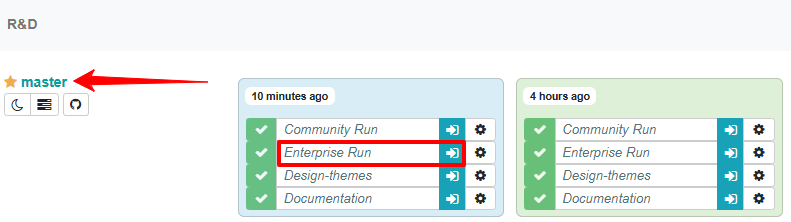
This option is particularly interesting if you want to see ongoing development changes in Odoo 20 rather than waiting for the final release.
What Can You Find in Odoo V20?
One of the interesting things about exploring an upcoming Odoo version is discovering the smaller improvements that can make everyday work easier.
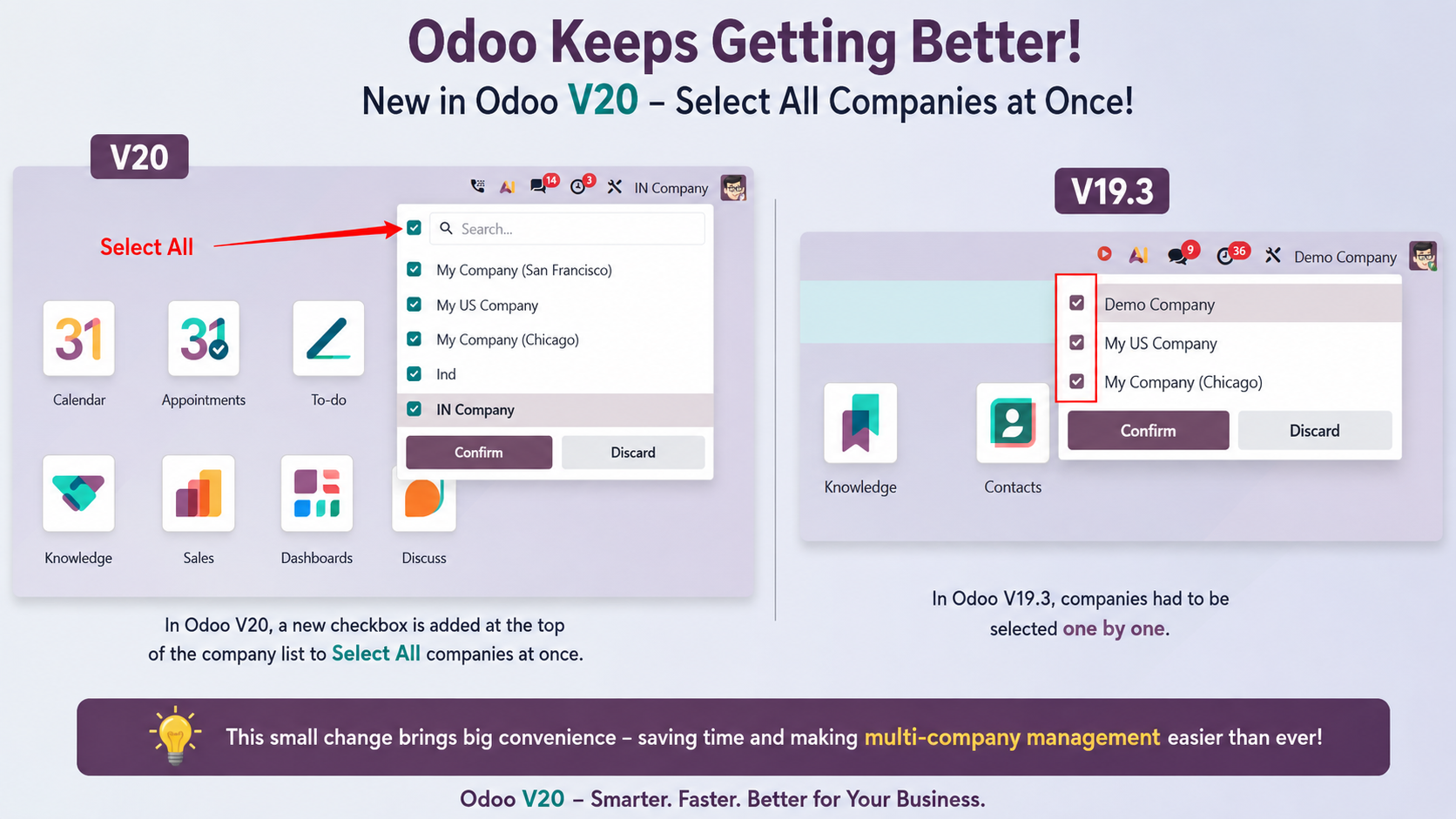
For example, one change I've noticed is the addition of a "Select All" option in the multi-company selector.
Previously, users had to select companies individually. With the new option, users can select all available companies at once.
It's a small change, but for users working with multiple companies, it can make the experience much more convenient.